Table of contents
How to request payment
To request payment, follow the instructions below:
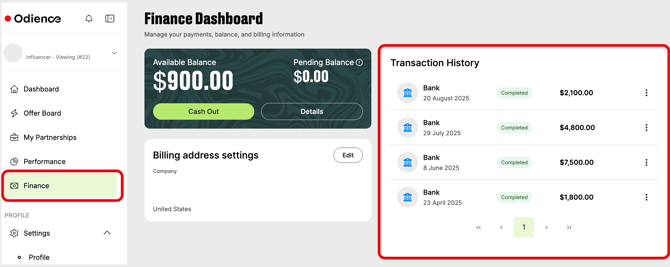
1. Go to the Finance tab in the sidebar menu > add your billing details, if you haven't done so > click the Cash Out button.
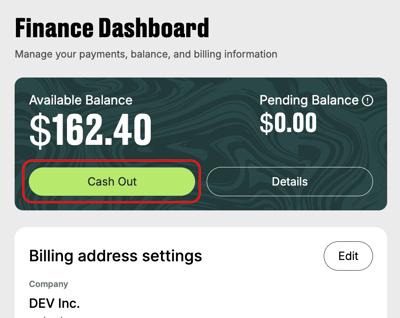
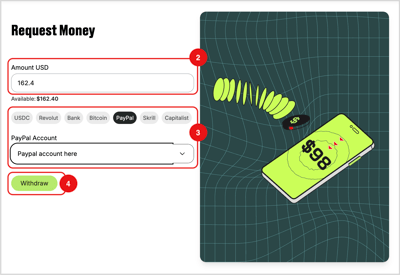
2. In the opened page, define the amount you intend to withdraw. By default, the maximum amount in balance will be written.
3. Select one of the supported payment methods and add the payment account details.
4. Click Withdraw.
Please note
There is a minimum amount requirement for withdrawal, which varies depending on the chosen payment method:
- USD 100 (or equivalent) for bank transfers;
- USD 50 (or equivalent) for Bitcoin (BTC) and USDC payments;
- USD 25 (or equivalent) for PayPal, Revolut, and Skrill payment services;
Please note
Minimum thresholds may vary depending on transaction fees. More information is published on Odience.io.
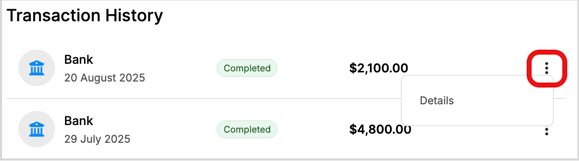
You can view the requested payments, including transaction dates and statuses, in the Transaction History section on the Finance Dashboard page.
Available payment terms
"NET" is a definition of the date of the payment request.
NET+30 is the default with a frequency of once a month.
For example, you have a balance of 1000 USD, and you request payment with the term NET+30. In this case, you will receive the money after 30 days.
Payment delivery duration
Payment term is defined as default NET+30, and the payment frequency will be monthly.
Pending balance
It is NOT possible to withdraw the Pending balance. Common reasons include
- selected payment terms and frequency hold the funds until the time arrives;
- earnings and conversions are under the validation process. Once validated, you may request that amount.
Invoice of the requested payment
An invoice is automatically generated by our platform once the payment is issued. From the Transaction history section, you may view and download the invoice for the requested payment in PDF format.
To do so, click the 3-dot next to the specific transaction and in the sub-window, click View invoice.