
This article provides a step-by-step process for adding and managing billing details for payments.
Add billing details
To add billing details, follow the steps below:
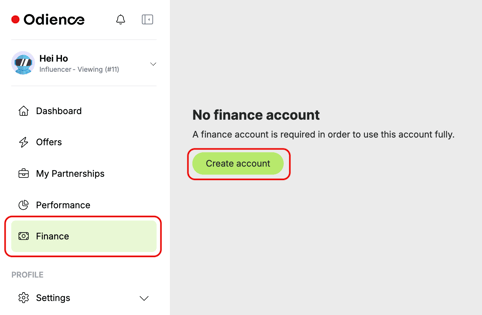
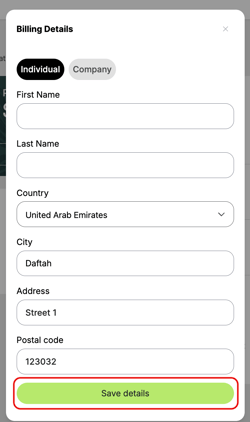
1. Click Finance on the sidebar menu.
If you do not have a finance account, please click "Create account" before proceeding.
2. On the Finance Dashboard, click the Add billing details button.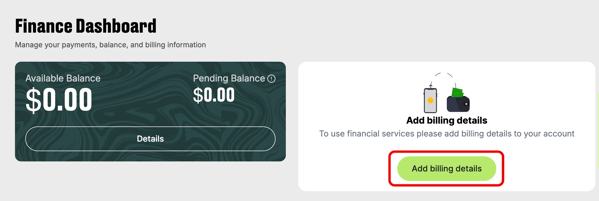
3. Fill out the form as an Individual or Company, depending on your profile, and click
Save Details.
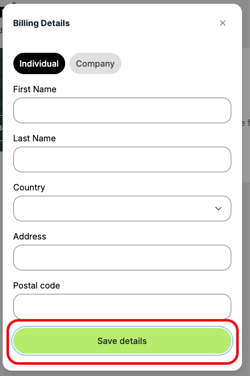
Please make sure the billing details are correct. Once the payment is made, billing details for that specific payment cannot be changed.
Once you save, a new box "Billing address settings" will appear on the Finance Dashboard.
Please note: Billing details are NOT the same as the banking details for getting paid.
Adding billing details does NOT result in you getting paid. You can be paid when (1) you have a balance in your wallet and (2) you have selected payment methods.
Manage billing details
Once billing details are added, you can view and edit them. For that:
1. Go to Finance on the sidebar and click Edit in the "Billing address settings" box.
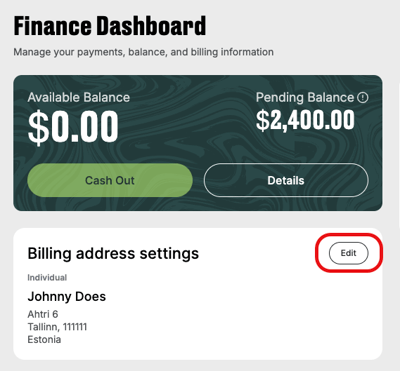
2. Make necessary changes in the form and click Save details.
That's all! Now you are ready to request payment and cash out your earnings.