---
title: Settings
description: Configure and manage your account settings from the Settings tab in the sidebar menu
---
[Skip to content](https://support.odience.io/settings#main-content)
[](https://support.odience.io/?hsLang=en)
Open main navigation
Close main navigation
- [Back to Site](https://odience.io/)
[Back to Site](https://odience.io/)
NEED AN ANSWER? IT'S PROBABLY HERE.
- There are no suggestions because the search field is empty.
1. [Odience Support Center](https://support.odience.io/?hsLang=en)
2. [Getting Started — Influencer Account](https://support.odience.io/getting-started-influencer-account?hsLang=en)
# Settings
## Use the Settings tab to manage your account details, preferences, and access links to legal policies.
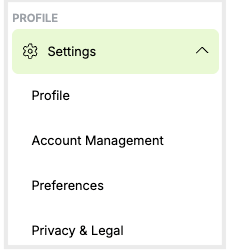
The **Settings** tab has **four** sections:
- [Profile](https://support.odience.io/settings#profile)– where you can view and edit your name and connected social media accounts.
- [Account Management](https://support.odience.io/settings#acc_management)– where you can delete your account.
- [Preferences](https://support.odience.io/settings#preferences)– where you can manage the in-app and email notifications.
- [Privacy & Legal](https://support.odience.io/settings#privacy_legal)– where the links to the Privacy Policy, and Cookie Policy and Terms of Service are listed.
### Profile
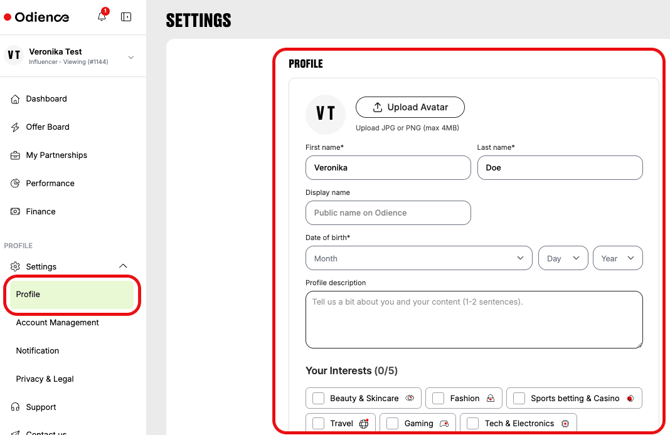
The Profile section includes your full name, niches, connected social media accounts, and aan avatar upload option. You can edit all fields.
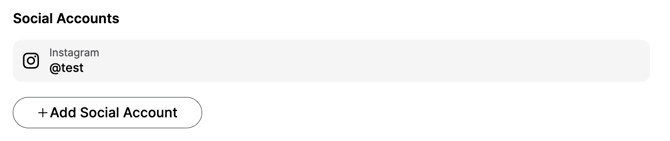
You can also add a new social media account by clicking **Add Social Account** or remove the existing account by clicking the **bin icon.**
### Account Management
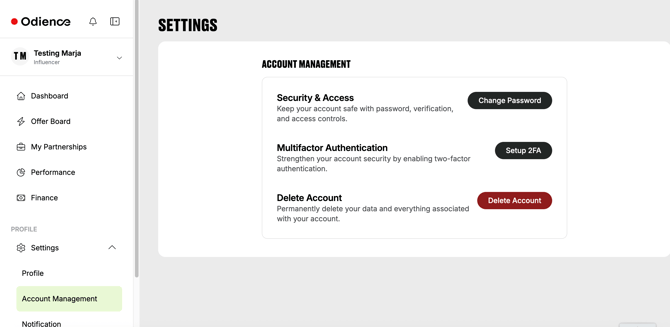
From the Account management section, you can
- **change your password**
- **set up two-factor authentication,** and
- **delete your account.**
### Preferences
On the **Preferences** page, you can choose
- whether to subscribe to the **Odience newsletter;**
- which **in-app** and **email** notifications you want to receive.
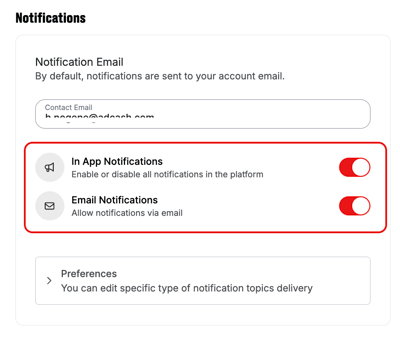
By default, notifications are sent to your account email.
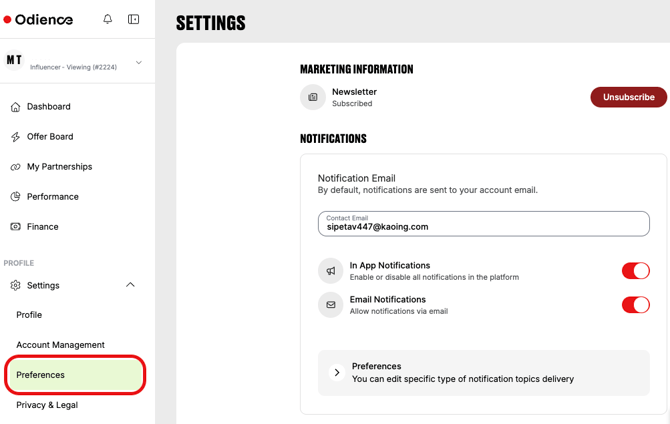
You can enable or disable **all** in-app and email notifications by **toggling on/off the switch .**
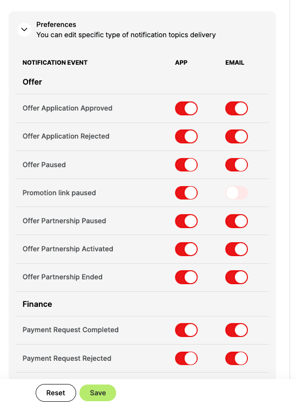
To choose specific notifications, click **Preferences** in the same page.
Notifications are grouped as Offer and Finance-related, and by channel: app or email.
**Toggle on/off each notification** based on your preferences.
After you make your changes, **click Save.**
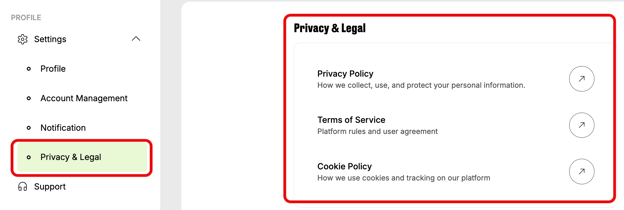
### Privacy & Legal
The Privacy & Legal page includes links to the Privacy Policy, Terms of Service, and Cookie Policy on our website.
- [Getting Started — Influencer Account](https://support.odience.io/getting-started-influencer-account?hsLang=en)
- [Offers and Influencer Partnerships](https://support.odience.io/offers-and-influencer-partnerships?hsLang=en)
- [Promote with Affiliate Links](https://support.odience.io/promote-with-affiliate-links?hsLang=en)
- [Influencer Finance](https://support.odience.io/influencer-finance?hsLang=en)
- [Influencer Payouts](https://support.odience.io/influencer-payouts?hsLang=en)
- [Performance Reporting](https://support.odience.io/performance-reporting?hsLang=en)
[](https://odience.io/)
© Odience Influencer Marketing Inc. 2025