
Table of Contents
Overview
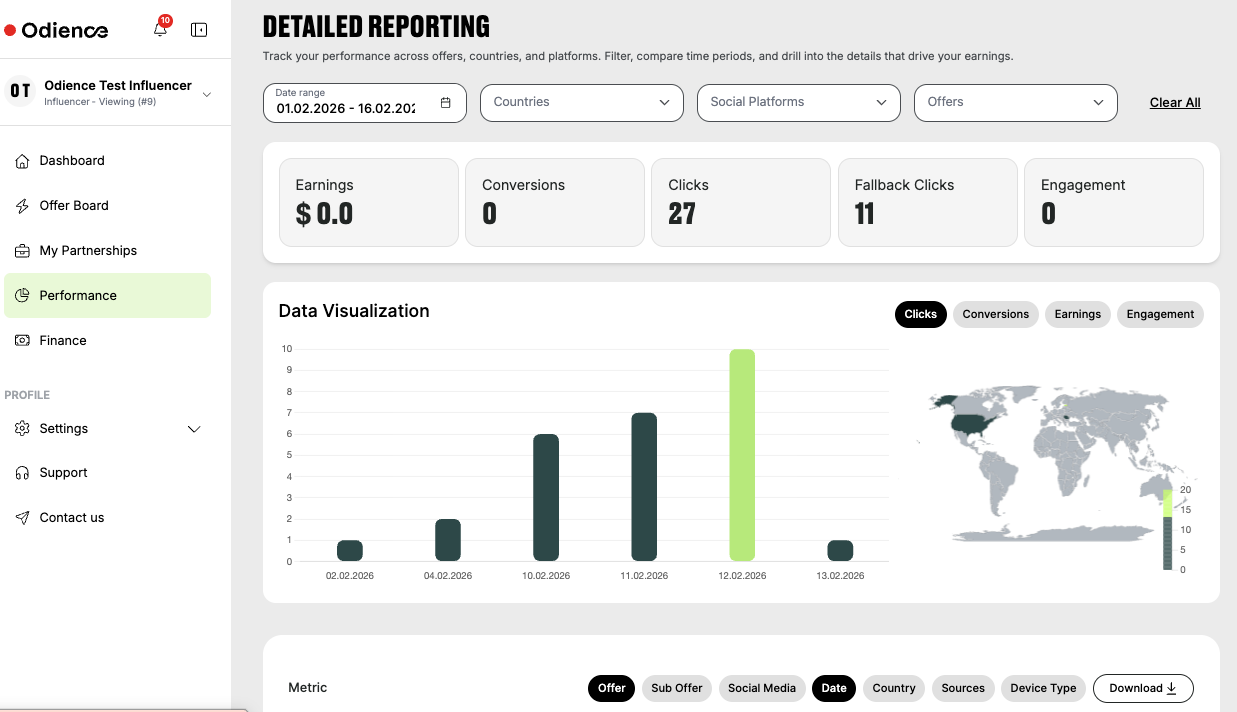
The Detailed Reporting page under the Performance tab is a tool to regularly track your performance and gain insights on the offers you are promoting.
It consists of the sections below:
- filtering options to check the performance,
- visual overview of the conversions, engagement, and earnings based on the selected filters,
- grouping options for more detailed indicators in a table format.
The Detailed Reporting page under the Performance tab is a tool to regularly track your performance and gain insights on the offers you promote.
How to use the tool
1. Select Filters
Filters define the main criteria based on which performance data is displayed.
They include:
- Date range
- Countries
- Social Platforms
- Offers

By default, data is displayed based on the present-day indicators with no specific filter selected.
To view the statistics for a specific date/date range, click the date range box on the left > define a custom date range or use the provided options (e.g., Last 30 days).
All reports are based on the Central European Time Zone and cannot be changed.
To add other filtering options, click the dropdown boxes and tick the options to select. You may choose more than one option.
The data on the page will be updated simultaneously.
2. Select your Grouping
Grouping options define the main criteria based on which data is displayed. You can select more than one option at a time.
The options include:
- Social Media
- Offer
- Country
- Date
- Sources (content spaces)
- Device Type
By default, the Offer and Date options are selected.

3. View Earnings, Conversions, and more
You can see the performance data based on the selected filters in chart and table formats.
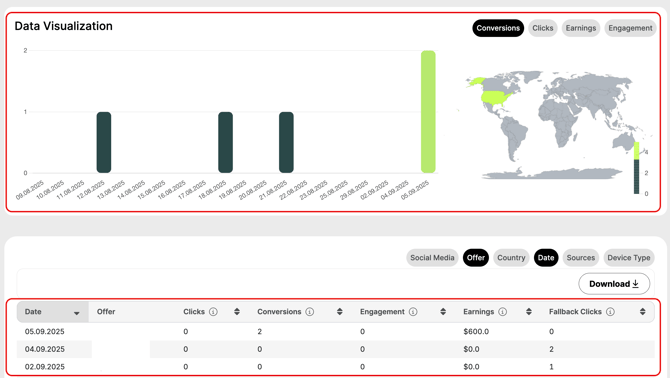
The result table consists of the following permanent columns besides the selected grouping options:
- Clicks – User clicks on the offer link
- Conversions – paid conversions, e.g., first-time deposit
- Engagement – other tracked non-paid conversion, e.g., registration
- Earnings – payouts per conversion
- Fallback Clicks – clicks that do not reach the audience due to:
- bots (non-human traffic),
- country restrictions (clicks from GEOs that are not targeted in the offer).
Download your report
After creating the report, you can download the history data in a desired file format. We support .csv,.xlsx, and .xml formats.
To download the data, click the Download button on the right and select a file format to export.
